SYS.GUIDES
Cursor for Founders: Complete Guide (2026)
How non-technical founders use Cursor to build and ship real software. A hands-on workflow: AI prompts, local testing, Git, and Vercel deploys, no coding needed.
ON THIS PAGE
- Watch the Workshop
- Prerequisites
- What Is Cursor (and Why Not Lovable/V0)
- Creating Your First Project
- Writing Your First Prompt
- Using Plan Mode
- Choosing AI Models
- Running the Dev Server
- Debugging with Screenshots
- Environment Variables and API Keys
- Source Control with Git
- Key Git Concepts
- Setting Up Git with the Agent
- Deploying with Vercel
- Making Updates and Pushing Changes
- Tips from Experience
I ran a hands-on workshop teaching non-technical founders and employees how to build and ship real software with Cursor. Not drag-and-drop prototypes, but actual production code deployed to the internet. This guide walks through the entire workflow: setting up Cursor, prompting the AI agent, debugging, source control with Git, and deploying with Vercel.
If you have been using no-code tools like Lovable or V0 and feel limited by what they let you do, this is the next step. You will end up with a real codebase you own, running on infrastructure you control, with the ability to make precise changes whenever you want.
Watch the Workshop
This guide is based on my full video workshop. You can watch it here or read the written version below.
Prerequisites
Before starting, you will need:
- Cursor installed from cursor.com (free tier works for this tutorial)
- Git installed on your system (the version control CLI tool)
- GitHub CLI (
gh) installed for creating repositories from the terminal - A GitHub account (free)
- A Vercel account (free tier) for deployment
- Optional: GitHub Desktop for a visual interface to Git
- Optional: a speech-to-text tool like WhisperFlow for faster prompting
What Is Cursor (and Why Not Lovable/V0)
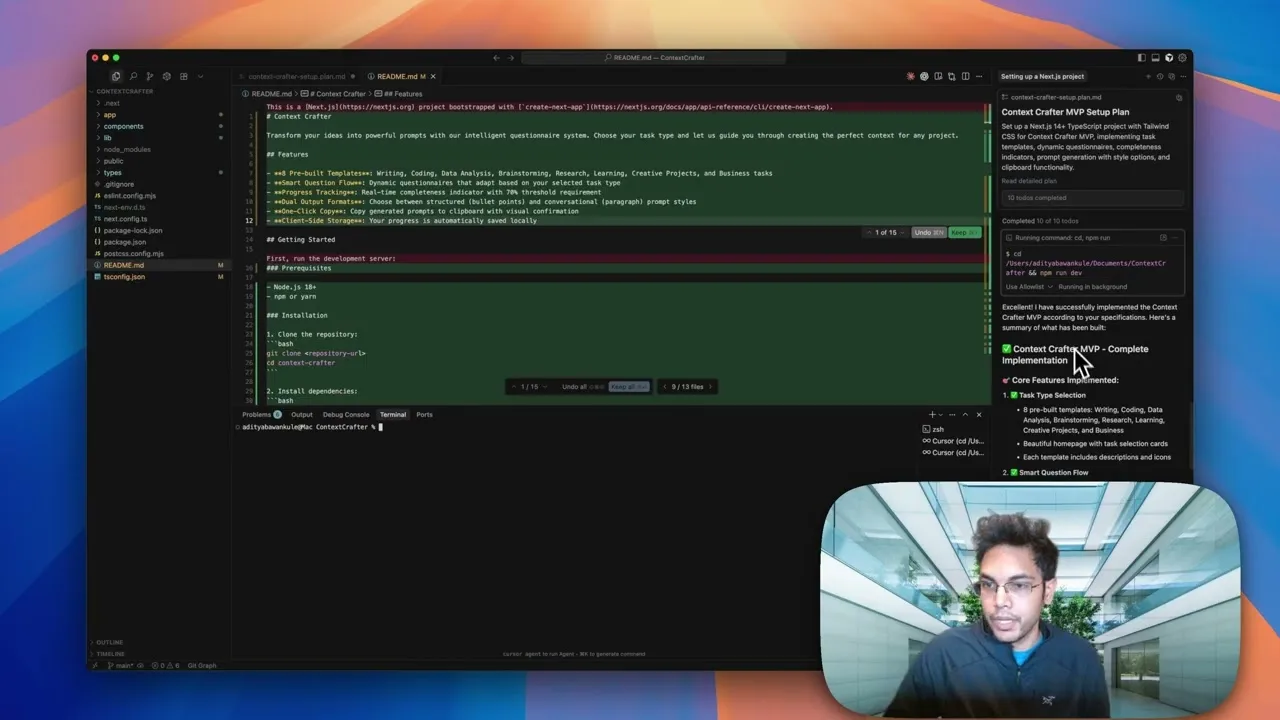
Cursor is an AI-powered IDE, which stands for Integrated Development Environment. It brings everything you need into one place: a file browser for your project, an AI agent chat panel, and an integrated terminal for running commands. Think of it as VS Code with a built-in AI copilot that can read, write, and execute code for you.
Tools like Lovable and V0 are great for getting something on screen fast. But they abstract away too much. When something breaks or you need a specific behavior, you are stuck because you do not have access to the underlying code. Cursor gives you the same AI-assisted speed with the full power of a real development environment underneath. You own the code, you control the stack, and you can be precise about changes in a way that point-and-click tools do not allow.
The tradeoff is complexity. Cursor has a steeper learning curve than no-code tools. But if you are building something you plan to maintain, iterate on, or eventually hand off to a real engineering team, starting with real code in a real IDE pays off quickly.
Creating Your First Project
Start by creating a folder on your computer for the project. Open Cursor and point it at that folder. You will see three main areas:
- File browser (left panel): shows all your project files as the agent creates them. You can read and edit files manually here too.
- Agent chat (right panel): where you talk to the AI. This is your main interface for building.
- Terminal (bottom panel): where commands run. The dev server, Git commands, and other CLI tools run here.
Writing Your First Prompt
Unlike Lovable or V0, Cursor is completely open-ended. It can create any kind of project: websites, desktop apps, APIs, mobile apps. Because of that, you need to be specific in your initial prompt. If you just say “I want to make a website,” it could choose any of a dozen frameworks and you might find out later it is not what you wanted.
A good starter prompt looks like this:
I want to create a website. Help me set up the project.
We're going to be using the Next.js framework.

Here are the features I want:
- [Feature 1]
- [Feature 2]
- [Feature 3]
Specify the framework (Next.js is a solid default for web apps), and list your core features. The more specific you are about what you want built, the better the initial output will be.
Using Plan Mode
Before letting the agent build anything, switch it to Plan Mode. You will find this option in the model selector dropdown. In Plan Mode, the agent thinks through the architecture before writing any code. It will:
- Ask clarifying questions (framework, styling, deployment target)
- Create a plan as a markdown file with a step-by-step implementation strategy
- Show you a to-do list of what it intends to build
- Wait for your approval before starting
This is significantly better than letting it dive straight in. You get a chance to course-correct before any code is written. In the workshop, the agent asked about styling (Tailwind), language (TypeScript), rendering strategy (client-side), and deployment target (Vercel) before writing a single line.
Choosing AI Models
One of Cursor’s biggest advantages over tools like Claude Code is access to multiple AI models in one IDE. You can switch models mid-project depending on what the problem needs:
- Claude: my go-to for most work. Especially strong at frontend design, component architecture, and generating clean UI code.
- GPT-4o-high / GPT-5: better for deep debugging, complex logic problems, and situations where Claude gets stuck. Switch to this when you are hitting a wall on a specific issue.
- Auto mode: lets Cursor pick the model for you. Fine for getting started, but you will get better results once you learn which model works best for which task.
The general pattern: start with Claude for building, switch to GPT when debugging gets difficult. New models come out regularly, and Cursor gives you access to them as soon as they are available.
Running the Dev Server
After the agent finishes building your project, it will typically start a local development server automatically. You will see something like localhost:3000 or localhost:3001 in the terminal output. Click that URL (or Cmd-click) to open your app in the browser.
Key things to know about the dev server:
- It auto-updates when files change. As the agent edits code, the browser refreshes automatically.
- The agent runs it in its own terminal instance. You can see it in the terminal panel at the bottom of Cursor.
- If the server crashes or you see “Internal Server Error,” sometimes the fix is just closing the terminal and restarting the server manually.
- Keep track of which port the server is running on. If the agent restarts it, the port number might change (e.g., from 3000 to 3001 to 3002).
Debugging with Screenshots
This is where Cursor really shines for non-technical users. When something looks wrong in your app:
- Take a screenshot of the broken UI
- Open the Cursor agent chat
- Attach the screenshot directly to the chat
- Describe the issue: “There is very poor text contrast here in the questionnaire page”
The agent can see the screenshot, understand the visual problem, and fix the code. No need to know which CSS property controls text color or which file contains the component. Just show it what is wrong and describe what you expected.
For server errors (not visual issues), copy the error output from the terminal and paste it into the chat. The agent can read stack traces and error messages and usually fix them directly.
Environment Variables and API Keys
If your project uses AI features, payment processing, or any external service, you will need API keys. These live in a file called .env or .env.local in your project root.
Important rules for API keys:
- Never share them. Anyone with your API key can use your resources and run up charges.
- Never commit them to Git. The
.gitignorefile should exclude.envfiles by default, but double check. - The agent will guide you. When a feature needs an API key, the agent will tell you which key to get and where to put it.
Source Control with Git
Once your project is in a state you are happy with, it is time to set up version control. This lets you save snapshots of your code, revert mistakes, and deploy automatically.
Key Git Concepts
- Commit: a saved snapshot of your changes. Each commit contains a set of file changes with a description of what was done.
- Branch: a separate line of development. Your
mainbranch is the live version. Feature branches let you work on changes without affecting the live site until you are ready. - Push: sending your local commits to GitHub so they are backed up and accessible from anywhere.
- Pull request: a way to merge changes from a feature branch into main. You can ask the agent to open pull requests for you using the GitHub CLI.
If it is just your own project and you are the only person working on it, you can work directly on the main branch. Branching becomes important when you are collaborating or want to test changes before they go live.
Setting Up Git with the Agent
Start a new chat (to keep context clean) and tell the agent:
I need to set up a Git repository for my project.
Set up the local Git repo and create a remote
repository on github.com using the GitHub CLI tool.
The agent will initialize Git locally, create an initial commit with all your files, create a GitHub repository, and push your code. One thing to watch for: the agent might create a public repository by default. If your code should be private, go to the GitHub repository settings and change the visibility.
At every step, you can ask the agent to explain what it is doing. Tell it “I am new to this, explain each step” and it will walk you through the concepts as it works.
Deploying with Vercel
Deployment is the easiest part. Go to vercel.com, click “New Project,” and import your GitHub repository. Connect your GitHub account if you have not already, select the repo, and click Deploy.
That is it. Vercel handles everything:
- Automatic deployments: every time you push to GitHub, Vercel automatically builds and deploys the new version.
- Preview URLs: pull requests get their own preview deployments so you can test changes before they go live.
- Custom domains: connect your own domain in the Vercel dashboard (optional).
If the initial deployment fails, copy the error logs from the Vercel dashboard and paste them into your Cursor agent chat. It can usually fix build errors the same way it fixes local errors.
Making Updates and Pushing Changes
The day-to-day workflow once everything is set up:
- Start a new chat in Cursor (keeps context clean)
- Describe the change you want: “Remove the business and strategy section from the app”
- Check locally: the dev server updates automatically, verify the change looks right at
localhost:3000 - Commit and push: tell the agent “commit and push these changes”
- Vercel auto-deploys: your live site updates within seconds
The important habit here is starting a new chat for each distinct task. The longer a chat goes, the more the agent’s context fills up, which leads to worse performance. Your old chats are still there if you need them.
Tips from Experience
- Watch the agent’s edits. If you see it deleting large chunks of your codebase, stop it immediately and see what is going on. The agent is very driven and can work independently, but it occasionally goes off the rails.
- Use text-to-speech for prompting. Tools like WhisperFlow let you dictate prompts instead of typing them. Faster and more natural, especially for describing visual issues.
- Be specific about frameworks upfront. Saying “use Next.js with Tailwind and TypeScript” in your first prompt avoids the agent making technology choices you will regret later.
- Command approvals are a safety net. Cursor asks for approval before running certain commands. Read what it is trying to run before approving. This prevents accidental deletions or destructive operations.
- Restart the server when things are weird. If you see “Internal Server Error” and the agent cannot fix it, close the terminal and restart the dev server manually. Sometimes that is all it takes.
- Make your GitHub repo private if it contains anything proprietary. The agent might default to creating a public repository.
For a deeper comparison of Cursor against other AI coding tools, see my Claude Code vs Codex vs Cursor comparison. And if you want to see the more advanced workflow, I have a separate post on how I vibe code large projects with many agents.
FREQUENTLY ASKED QUESTIONS
Do I need to know how to code to use Cursor?
No. Cursor's AI agent writes the code for you based on your descriptions. You need to understand basic concepts like files, folders, and running commands, but you do not need to write code yourself. The workshop is designed for people with zero coding experience.
Is Cursor free to use?
Cursor has a free tier that includes limited AI completions. For serious use, the Pro plan is $20/month and includes more model access and higher usage limits. The free tier is enough to follow this entire workshop.
Why use Cursor instead of Lovable or V0?
Lovable and V0 are faster for initial prototypes but limit what you can customize. Cursor gives you a real codebase, real source control, and access to multiple AI models. When something breaks, you can fix it precisely rather than being stuck with the platform's limitations.