SYS.GUIDES
Can Claude Analyze YouTube Videos? (2026)
Claude Code can analyze public YouTube videos with a free MCP server. Set it up to summarize, transcribe, search, capture frames, and ask questions.
ON THIS PAGE
- How Claude Code Analyzes YouTube Videos
- How the YouTube MCP Server Works
- Prerequisites
- Installation
- Configure Claude Code
- Configure Claude Desktop
- Tools Reference
- Summarize a Video
- Ask Questions About a Video
- Get the YouTube Transcript
- Extract Screenshots
- Search Within a Video
- Search YouTube
- Practical Examples
- Tips and Gotchas
Claude Code can analyze public YouTube videos, but not natively. Claude Code and Claude Desktop cannot open a YouTube URL on their own. The fix is a one-time setup with the free yt-analysis YouTube MCP server. It sends the public URL to Google’s Gemini API so Claude can summarize, transcribe, search, capture frames, and answer questions about the video without downloading it.
I built it because I kept running into the same situation: someone shares a 40-minute conference talk, and I want Claude to pull out the specific parts relevant to what I’m working on. Now it can.
How Claude Code Analyzes YouTube Videos
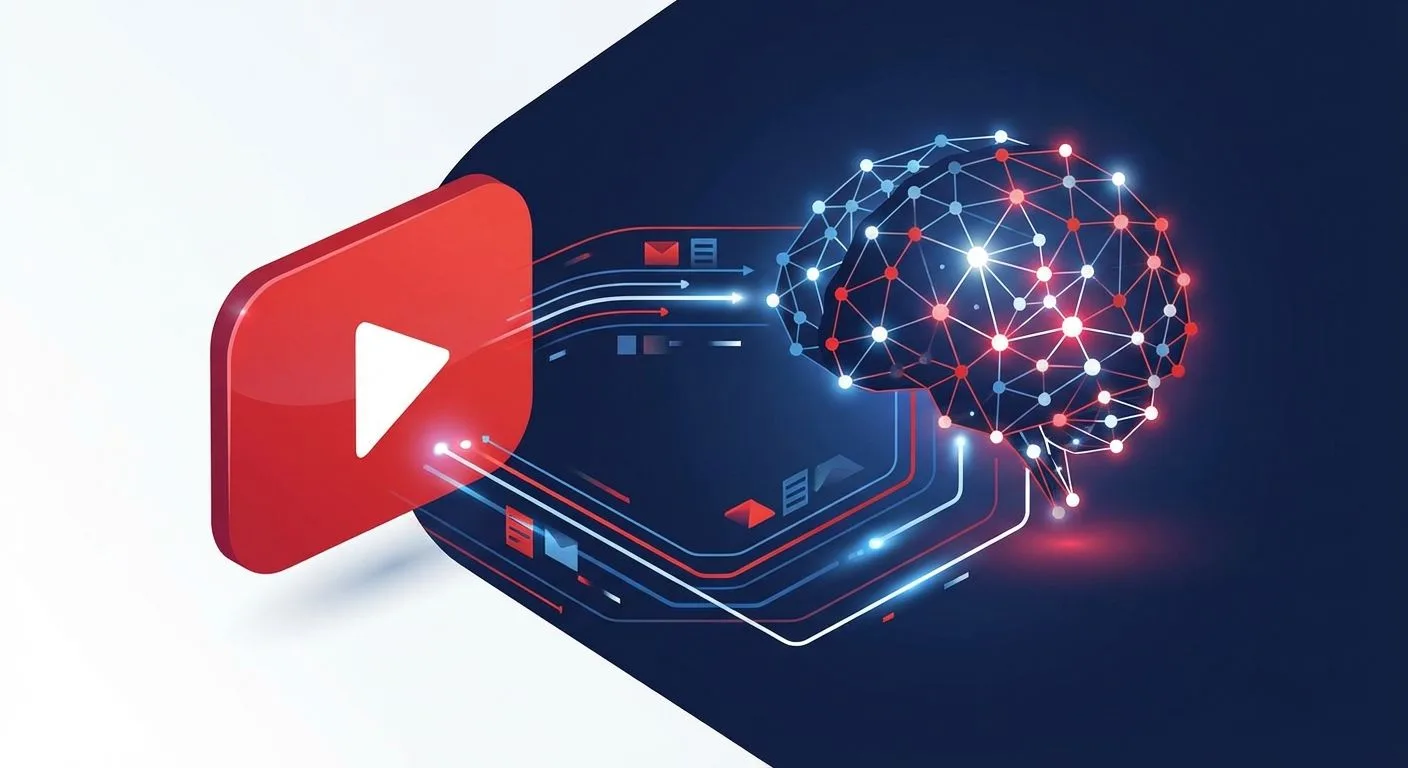
The YouTube MCP server adds 8 tools to Claude for working with YouTube content. Gemini receives the YouTube URL directly, no local video processing, no transcription APIs, no downloading. The key is that Gemini has native YouTube URL support in its multimodal API, so it analyzes the actual video frames and audio rather than a separately generated transcript.
What you get out of it:
- Video summaries at three levels of detail
- Question and answer against any video
- Full YouTube transcript extraction
- Frame capture at key moments or specific timestamps
- Search for specific content within a video
- YouTube search (find videos matching a query)
All of this works inside a Claude Code session or Claude Desktop conversation, wherever you normally work.
How the YouTube MCP Server Works
MCP stands for Model Context Protocol, an open standard created by Anthropic that lets AI agents connect to external tools and data sources. Think of MCP servers as plugins for Claude: each one adds a set of tools that Claude can call during a conversation.
Claude cannot browse the web, watch videos, or access external APIs on its own. MCP servers close that gap. You install a YouTube MCP server once, and from that point on Claude has YouTube analysis capabilities in every session. The yt-analysis MCP server specifically bridges Claude to the Gemini YouTube API, giving it the ability to read, summarize, and query any public video.
Prerequisites
- Node.js 18+ installed on your system
- Claude Code or Claude Desktop
- A Gemini API key from Google AI Studio ; the free tier works for most use cases
The Gemini free tier gives you 15 requests per minute on Gemini 2.5 Flash. That’s enough for casual use. If you are analyzing videos constantly, the paid tier is cheap enough that it will not noticeably affect your bill.
Installation
Clone the repo and build it:
git clone https://github.com/Legorobotdude/yt-analysis-mcp.git
cd yt-analysis-mcp
pnpm install
pnpm build
The build step compiles TypeScript to dist/index.js. Note the full path to where you cloned it; you will need it in the next step.
Configure Claude Code
Run this command with your Gemini API key and the actual path to the cloned repo:
claude mcp add -s user -e GEMINI_API_KEY=your-key yt-analysis -- node /path/to/yt-analysis-mcp/dist/index.jsThe -s user flag makes this MCP server available across all your Claude Code sessions, not just the current project. Restart Claude Code after running this and the tools will be active immediately.
Configure Claude Desktop
Open your Claude Desktop MCP config file. On macOS it lives at ~/Library/Application Support/Claude/claude_desktop_config.json. Add the YouTube MCP server to the mcpServers object:
{
  "mcpServers": {
    "yt-analysis": {
      "command": "node",
      "args": ["/path/to/yt-analysis-mcp/dist/index.js"],
      "env": {
        "GEMINI_API_KEY": "your-key"
      }
    }
  }
}
Replace /path/to/yt-analysis-mcp with the actual path on your machine. Restart Claude Desktop and look for the tools icon in the chat interface to confirm the MCP server connected.
Tools Reference
Once installed, Claude has access to 8 YouTube analysis tools. You do not need to call them explicitly. Just give Claude a YouTube URL and describe what you want. It picks the right tool automatically.
Summarize a Video
Tool: summarize_video
Generates a summary at one of three detail levels: brief, medium (default), or detailed (includes timestamps). Brief is good for quickly deciding if a video is worth your time. Detailed is what you want when you need to reference specific moments later.
Summarize this video in detail with timestamps:
https://www.youtube.com/watch?v=VIDEO_ID
Ask Questions About a Video
Tool: ask_about_video
Ask anything about the video content: what the speaker said about a specific topic, what tools they mentioned, what the conclusion was. Gemini has analyzed the whole video, so answers are grounded in actual content rather than guessed from the title or description.
What does the speaker say about rate limiting?
https://www.youtube.com/watch?v=VIDEO_ID
Get the YouTube Transcript
Tool: get_transcript
Returns a full text transcript of the video. This is one of the most searched use cases: getting a YouTube transcript without using a separate tool or API. Useful when you want to quote exact wording, feed content into another workflow, or do your own analysis on the raw text. Unlike YouTube’s auto-generated captions, this transcript comes from Gemini’s full video analysis, so it handles unclear audio and technical terminology better.
Get the full transcript of this video:
https://www.youtube.com/watch?v=VIDEO_ID
Extract Screenshots
Tools: extract_screenshots and extract_frames
extract_screenshots has Gemini identify the most important moments in the video and capture frames from those points. You can also pass a focus parameter to target specific content (code examples, slide transitions, diagrams). The companion tool extract_frames works the same way but takes explicit timestamps you specify rather than letting Gemini decide. Frames are saved locally to the directory you specify.
Search Within a Video
Tool: search_in_video
Searches for specific content within a video and returns timestamps where it appears. Useful for long videos where you know what you are looking for but do not want to scrub through manually.
Find every timestamp in this video where they discuss
database indexing:
https://www.youtube.com/watch?v=VIDEO_ID
Search YouTube
Tool: search_youtube
Searches YouTube for videos matching a query and returns results with URLs. This is for finding videos in the first place, not analyzing them. Combine it with the other tools to go from a topic to a summary in one conversation without leaving Claude.
Find videos about React Server Components and summarize
the top result
Practical Examples
Three workflows I use regularly:
Conference talk triage. Someone shares a 3-hour conference recording. Ask Claude for a brief summary, then follow up with specific questions about the parts relevant to your current work. You get the value of the talk in about 5 minutes.
Give me a brief summary of this conference talk:
https://www.youtube.com/watch?v=VIDEO_ID

Then tell me: what specific architectural decisions
did they make for the data layer?
Tutorial code extraction. You found a tutorial video for a library but want the code without watching the whole thing. Ask Claude to get the YouTube transcript and pull out all the code snippets.
Get the transcript of this tutorial and extract every
code example they show:
https://www.youtube.com/watch?v=VIDEO_ID
Research synthesis. You want to understand a topic from multiple angles. Search YouTube for videos on the topic, pick the top 3, summarize each, and ask Claude to synthesize the key points across all of them.
Search YouTube for "raft consensus algorithm explained",
find the top 3 results, summarize each one, and tell me
what key points all of them agree on
Tips and Gotchas
- Private and age-restricted videos will not work. Gemini can only analyze publicly accessible YouTube URLs.
- Very long videos are slower. Gemini processes the whole video before responding. A 3-hour video takes noticeably longer than a 10-minute one.
- The Gemini free tier rate-limits at 15 req/min. If you are chaining multiple analyses in a single session, you may hit this. Wait a minute and retry.
- You do not need to call tools by name. Just tell Claude what you want in natural language. “Summarize this video” triggers
summarize_video. “What did they say about X?” triggersask_about_video. “Get me the transcript” triggersget_transcript. Explicit tool names only matter if you want precise control. - Shorts and youtu.be URLs both work. The MCP server handles
youtube.com/watch?v=,youtu.be/, andyoutube.com/shorts/.
Common Questions About Claude and YouTube Videos
Can Claude Code analyze YouTube videos?
Yes, after you connect an MCP server. Claude Code has no native YouTube access, but yt-analysis sends a public YouTube URL to Gemini and returns grounded summaries, transcripts, frame captures, searches, and answers inside Claude.
How to make Claude watch a YouTube video?
Install yt-analysis in Claude Code or Claude Desktop, add a Gemini API key, restart Claude, then paste a public YouTube URL with your request. Claude selects the correct MCP tool automatically.
Can Claude transcript YouTube videos?
Yes. With yt-analysis installed, ask Claude for the transcript of a public YouTube video. The server calls Gemini’s YouTube support and returns text with timestamps; no separate Whisper setup is required.
Can Claude read through videos?
Not natively. Through yt-analysis, Gemini examines the video’s audio and frames and returns the result to Claude, so Claude can answer questions about what was said and shown. Local video files are outside this guide’s setup.
Can I connect my YouTube to Claude?
You do not connect a YouTube account. Paste a public video URL after installing the MCP server. Private and age-restricted videos are not supported because Gemini must be able to access the URL.
Full source and issue tracker are on GitHub. If you are interested in other MCP servers I’ve built, check out the Image Generation MCP Server which uses the same Gemini API for image generation across any MCP-compatible client. New to Claude Code itself? My complete Claude Code guide covers everything from install to agent teams. Still weighing Claude Code against other harnesses? I ranked the ones actually worth using in my best Claude Code alternatives breakdown.
FREQUENTLY ASKED QUESTIONS
Can Claude Code analyze YouTube videos?
Yes, after you connect an MCP server. Claude Code has no native YouTube access, but yt-analysis sends a public YouTube URL to Gemini and returns grounded summaries, transcripts, frame captures, searches, and answers inside Claude.
How to make Claude watch a YouTube video?
Install yt-analysis in Claude Code or Claude Desktop, add a Gemini API key, restart Claude, then paste a public YouTube URL with your request. Claude selects the correct MCP tool automatically.
Can Claude transcript YouTube videos?
Yes. With yt-analysis installed, ask Claude for the transcript of a public YouTube video. The server calls Gemini's YouTube support and returns text with timestamps; no separate Whisper setup is required.
Can Claude read through videos?
Not natively. Through yt-analysis, Gemini examines the video's audio and frames and returns the result to Claude, so Claude can answer questions about what was said and shown. Local video files are outside this guide's setup.
Can I connect my YouTube to Claude?
You do not connect a YouTube account. Paste a public video URL after installing the MCP server. Private and age-restricted videos are not supported because Gemini must be able to access the URL.